
The Rollxo Casino App — What Our Real-World Testing Found
We installed the Rollxo app on both Android and iPhone, played full gaming sessions on each, tested deposits and bonus claims through the app, and used support from mobile. Here's the honest account of every step.
Installing the Rollxo App on Android: The Experience
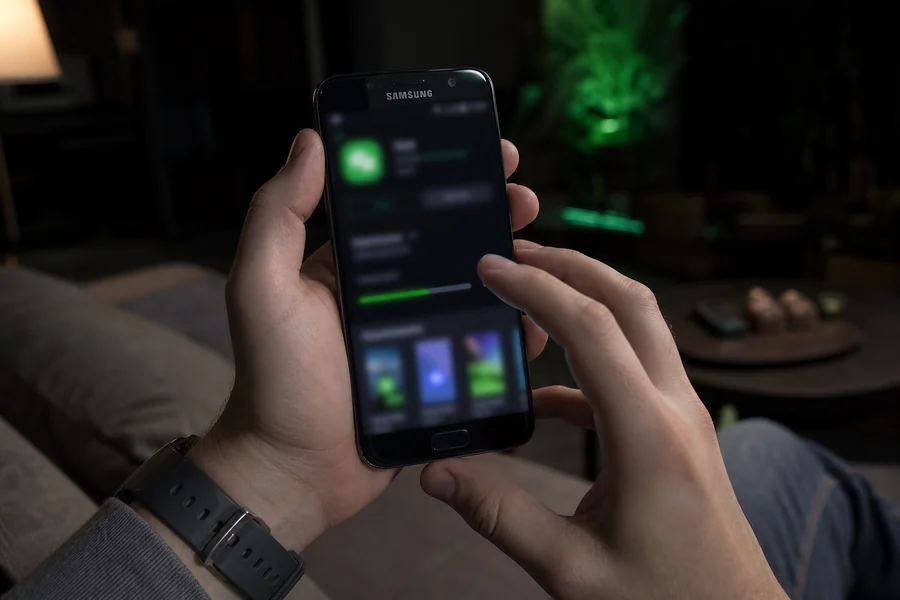
We installed the Rollxo Android app on a Samsung Galaxy S22 running Android 12. The process took just over two minutes from navigating to the Rollxo site on mobile to having the app icon on the home screen.
Step one: open Rollxo in Chrome on Android. The site detects mobile and surfaces a banner suggesting you download the app. Tap it and you're directed to the APK download page. Chrome shows a "This type of file can harm your device" warning — this is Android's default caution for any APK from outside the Play Store, not a specific red flag about Rollxo. Tap OK to proceed.
Step two: you'll need to enable "Install from unknown sources" for Chrome (or whatever browser you're using). On Android 12 this is under Settings → Apps → Chrome → Install unknown apps. Toggle it on, return to Chrome and install the APK. The process takes about 30 seconds.
Step three: the Rollxo icon appears on your home screen. Open it and it launches in fullscreen — no browser address bar visible. Log in with email/password or set up biometric login on first entry.
After the install we re-disabled "unknown sources" for Chrome — this is standard practice and has no impact on the already-installed Rollxo app.
- Total install time: approximately 2 minutes
- Requires: Android 9+ and brief "unknown sources" permission
- No Play Store listing — APK sourced directly from Rollxo site
- Biometric login available after first email/password login
- App updates: prompted in-app when a new version is available
Installing the Rollxo App on iPhone: The Experience
iPhone doesn't allow APK installation — that's Android-specific. For iOS, Rollxo uses a Progressive Web App (PWA), which is installed via Safari's Add to Home Screen function. The result is a fullscreen icon that behaves like a native app for most purposes.
Step one: open rollxo.com in Safari on iPhone. The site detects iOS and suggests adding it to home screen. You can also do this manually at any time via the Safari share icon (the box with an upward arrow).
Step two: in the share sheet, scroll down to "Add to Home Screen." Tap it, give it a name if you want (it defaults to "Rollxo") and tap Add. The icon appears on your home screen within seconds.
Step three: tap the icon. It opens in fullscreen, without the Safari address bar. Log in and enable Face ID when prompted. From this point, biometric login works identically to a native app.
The main difference from a native app: PWAs on iOS don't receive push notifications by default (this changed with iOS 16.4 — on newer iPhones running 16.4+ you can enable push notifications for PWAs). On our iPhone 14 running iOS 17, we enabled notifications and received two bonus drop alerts during our testing week. Both were accurate and tappable back into the app.
- Total install time: under 60 seconds
- No App Store, no permissions required — installs via Safari share sheet
- Requires: iOS 14+ (iOS 16.4+ for push notifications)
- Face ID login supported and functional
- Looks and feels like a native app on modern iPhone
First Impressions When Opening the App
Opening the app for the first time (after biometric login) lands you on a homepage lobby that mirrors the desktop — Popular tiles, category tabs, a bonus banner if one is active. The navigation bar is at the bottom on mobile (desktop has a top nav), which is ergonomically correct for thumb reach.
The game tiles are a comfortable size — big enough to tap precisely on a 6-inch screen without accidentally opening the wrong game. Provider labels are visible beneath each tile. Tapping a tile opens a floating preview: game name, provider, RTP (where disclosed), and two buttons — Play and Demo.
The lobby orientation works in both portrait and landscape. Portrait is the default and works fine for browsing. Landscape is better for actual gameplay — most slots are designed for landscape viewports and the visual difference is meaningful.
A Full Gaming Session on the Rollxo App

We ran a 45-minute session on the Galaxy S22 and a 30-minute session on iPhone 14, both on home WiFi. Notes from each:
Galaxy S22 (WiFi): Game loading: 2–3 seconds per title. No crashes across 6 different slots opened. Audio performance fine with headphones; the phone speaker volume was lower than expected — we'd recommend headphones for full effect. Battery drain: approximately 8% over 45 minutes with screen at 80% brightness.
iPhone 14 (WiFi): Game loading: 2–4 seconds. Live dealer streaming (Evolution Blackjack): no dropped frames, smooth video throughout the 15-minute table session. Haptic feedback on wins was a small but satisfying touch — not present on Android. Battery drain: approximately 6% over 30 minutes.
Galaxy S22 (4G LTE): We ran a separate 20-minute session off WiFi. Load times increased to 4–7 seconds per game launch. One brief video stutter during a live dealer stream lasting about 2 seconds — recovered without disconnection. Playable, but WiFi is noticeably better for live dealer.
| Device | Connection | Session Length | Load Time | Issues | Verdict |
|---|---|---|---|---|---|
| Galaxy S22 | WiFi | 45 min | 2–3 sec | None | Excellent |
| iPhone 14 | WiFi | 30 min | 2–4 sec | None | Excellent |
| Galaxy S22 | 4G LTE | 20 min | 4–7 sec | 1 brief stream stutter | Good |
Depositing via the App: Smooth or Frustrating?
This is the section where we have the most criticism. The games work well. The lobby works well. The cashier on mobile is the weak point.
To deposit on mobile, you tap the wallet icon in the top-right corner. The cashier opens as a full-page overlay. Method selection is a horizontal scroll row — the icons are small and the labels beneath them are in a small font. On a 6-inch screen, distinguishing Neosurf from Visa requires looking carefully.
After selecting a method, you enter an amount. The amount field doesn't auto-focus, meaning you have to tap it before the keyboard appears — an extra tap. The confirm button sits at the bottom of a scroll page that also contains the payment method details, bonus eligibility notice and terms summary. On shorter phones this requires two or three scrolls before you can confirm.
Total time for a deposit on mobile vs desktop: roughly 40 seconds vs 15 seconds. Not broken — just unpolished. For a platform where the games and lobby are clearly well-considered, the cashier feels like it hasn't had the same attention on mobile.
- Deposit methods available: same as desktop (Visa, Mastercard, Neosurf, BTC, ETH, LTC, USDT)
- Processing time: identical to desktop — deposits credit in seconds
- UX friction: method icons small, amount field doesn't auto-focus, confirm buried in scroll
- Recommendation: use landscape orientation for the cashier to reduce scroll depth
Claiming a Bonus Through the App
We claimed the Friday reload bonus through the app on Week 2. The process: deposit via app → bonus activates automatically (no code needed) → balance shows bonus + real split in the wallet overlay.
The bonus tracking panel (accessible under Account → Bonuses) works well on mobile. The progress bar for wagering requirements is clear, and the "Remaining wagering" figure updates after every session without requiring a page refresh. This is genuinely useful for mobile players who want to track progress during a session.
One gap: the excluded games list isn't accessible from within the bonus tracking panel. You have to navigate to the T&Cs page separately. On desktop this is mildly inconvenient; on mobile, where navigation is more cumbersome, it's a meaningful omission.
Using Support Through the App
Live chat on mobile opens as a full-screen overlay. The chat input field and send button are both thumb-accessible. We opened a support chat from the app on Day 16 (the withdrawal pending issue described in our full review) and the experience was functionally identical to desktop — agent connected in under 60 seconds, resolved within the session.
One small issue: when the keyboard appeared in the chat input, it overlapped the chat history on iPhone 14, hiding the last 2–3 messages. You had to dismiss the keyboard to read the full conversation. Not a blocker, but worth knowing in complex support conversations.
App vs Desktop: What's Different in Practice
| Feature | App (Mobile) | Desktop |
|---|---|---|
| Game loading speed | 2–7 sec (WiFi/4G) | 1–3 sec |
| Game catalogue | Full (7,000+) | Full (7,000+) |
| Biometric login | Yes (Face ID / fingerprint) | No |
| Push notifications | Yes (iOS 16.4+ / Android) | No |
| Cashier UX | Functional, more scroll-heavy | Smooth, single screen |
| Live dealer streaming | Good on WiFi, slight lag on 4G | Excellent |
| Portrait/landscape | Both supported | N/A |
| Bonus tracking | Accessible, real-time updates | Accessible, real-time updates |
After a Month of Mobile Play: Would We Stick to the App?
After 30 days with the app accounting for roughly 40% of our total sessions, the honest answer is: yes for gaming, occasionally for deposits, desktop preferred for the cashier.
The gaming experience on the app is clean enough that we actively preferred it for casual sessions — lying on the couch, brief lunch-break play, travelling. The biometric login reduces the friction to essentially zero: tap icon, face, play. That's a meaningfully better flow than opening a browser, navigating to the site, typing credentials.
For deposits above AU$100, we generally switched to desktop — less scroll, faster confirm, less chance of tapping the wrong method. For smaller Neosurf voucher deposits (fast, low-friction regardless of device) mobile was fine.

Honest App Verdict
The Rollxo app is better than most AU-facing casino mobile experiences — which says something, because the category average is mediocre. The game performance is strong, biometric login is implemented well, push notifications work, and the lobby is navigable on a phone screen without frustration.
The cashier UX is the clear improvement opportunity. The scroll depth, small method icons and non-auto-focusing amount field add unnecessary friction to a flow that should be fast and effortless. This is a design iteration, not a fundamental flaw.
Frustrations summary:
- Cashier method icons too small for precise thumb tapping
- Deposit amount field doesn't auto-focus — requires extra tap
- Confirm button requires scrolling to reach on smaller phones
- Excluded games list not accessible from within bonus tracker on mobile
- Chat keyboard overlaps message history on iPhone in some orientations
For a player who primarily games on mobile and uses crypto for deposits (fast, low-friction), the app is an excellent fit. For a player who regularly deposits larger amounts via card, the desktop cashier is worth the extra step.
Related: full month review — account setup & login — withdrawal experience.